




FAQ's
What does 9 × 16 mean when resizing an image?
It refers to the selected width and height dimensions of the output image. The exact physical or digital size depends on the unit you choose, such as pixels, inches, cm, or mm.
Can I enter a different width and height instead of 9 × 16?
Yes. You can manually enter your required width and height if you need dimensions other than 9 × 16. Select the appropriate unit before entering the measurements.
Can I set 9 × 16 cm instead of inches?
Yes. Change the unit to cm. This is useful when the dimensions are specified in centimeters for a document, design, or print requirement.
Why would I lock the aspect ratio when changing dimensions?
Locking the aspect ratio keeps the width and height proportional while you modify the dimensions. This can help prevent the original image from becoming unnaturally stretched or compressed.
Why does my image look stretched after resizing?
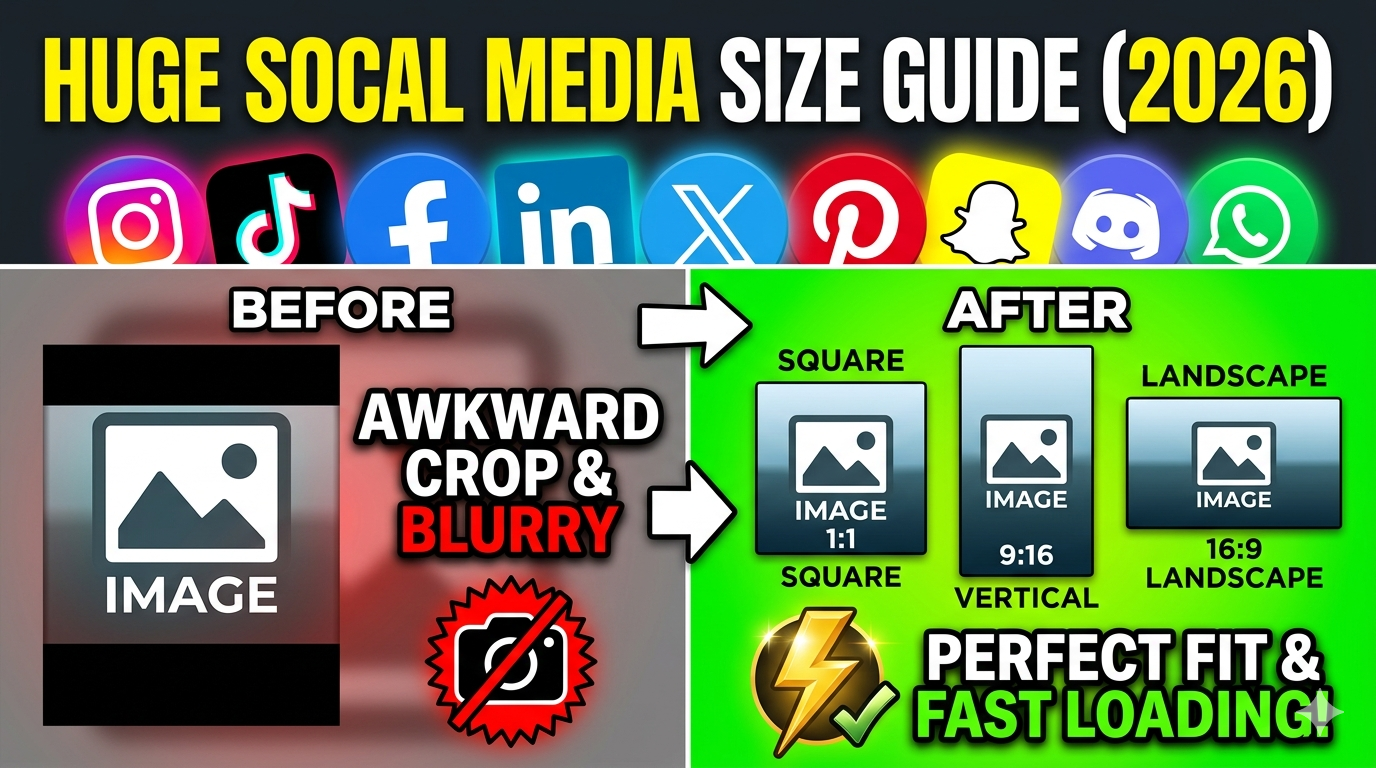
This can happen when the image is forced into the new width and height without preserving its original proportions. Try a Fit & Blur or Fit & Color option if you want to keep the complete image visible without stretching it.
What is the difference between stretch and fit & blur?
Stretch fills the entire output area by changing the image proportions when necessary. Fit & Blur keeps the image fitted within the required dimensions and uses a blurred background to fill the unused area.
What does Fit & Color do?
Fit & Color places the image within the required dimensions without stretching it and fills the remaining space with a solid background color. It is useful when you want a clean background rather than a blurred one.
Which resize type should I use if I don't want to crop my image?
Use Fit & Blur or Fit & Color when you want to keep the complete image visible. These options fill the remaining area instead of cutting parts of the original image away.
Which resize type should I use if the entire 9 × 16 area must be filled?
Stretch fills the complete area, but it can change the proportions of the original image. If avoiding distortion is more important, a fit option with blur or color may be preferable.
Why are there empty areas around my image after resizing?
When the original image has different proportions from the requested dimensions, fitting the entire image can leave unused space. Fit & Blur and Fit & Color fill this space with a background instead of cropping or stretching the image.
What DPI should I choose for a digital image?
For typical screen-based use, 72 or 96 DPI can be suitable. The appropriate setting ultimately depends on the requirements of the application or destination where the image will be used.
When should I choose 200 or 300 DPI?
These higher DPI settings can be useful when preparing an image for printing or when a particular document or printing requirement specifies them. Choosing a higher DPI does not automatically add missing image detail.
Does changing DPI increase the actual image quality?
Not necessarily. DPI relates mainly to how image dimensions are interpreted for printing. The original image's pixel dimensions and quality still determine how much actual detail is available.
Which quality value should I use if I need a smaller file?
A lower quality value can help reduce the output file size. If image appearance is still important, use a moderate value rather than automatically choosing the lowest available setting.
Which quality value should I use when image detail is important?
Choose a higher quality value, particularly when you want to preserve more visual detail. Keep in mind that the resulting file size can vary depending on the image and selected format.
Why is my resized image still large even after reducing its dimensions?
Output file size depends on more than width and height. The image format, quality setting, original image content, and resulting dimensions can all affect the final file size.
Can I change the format while resizing the image?
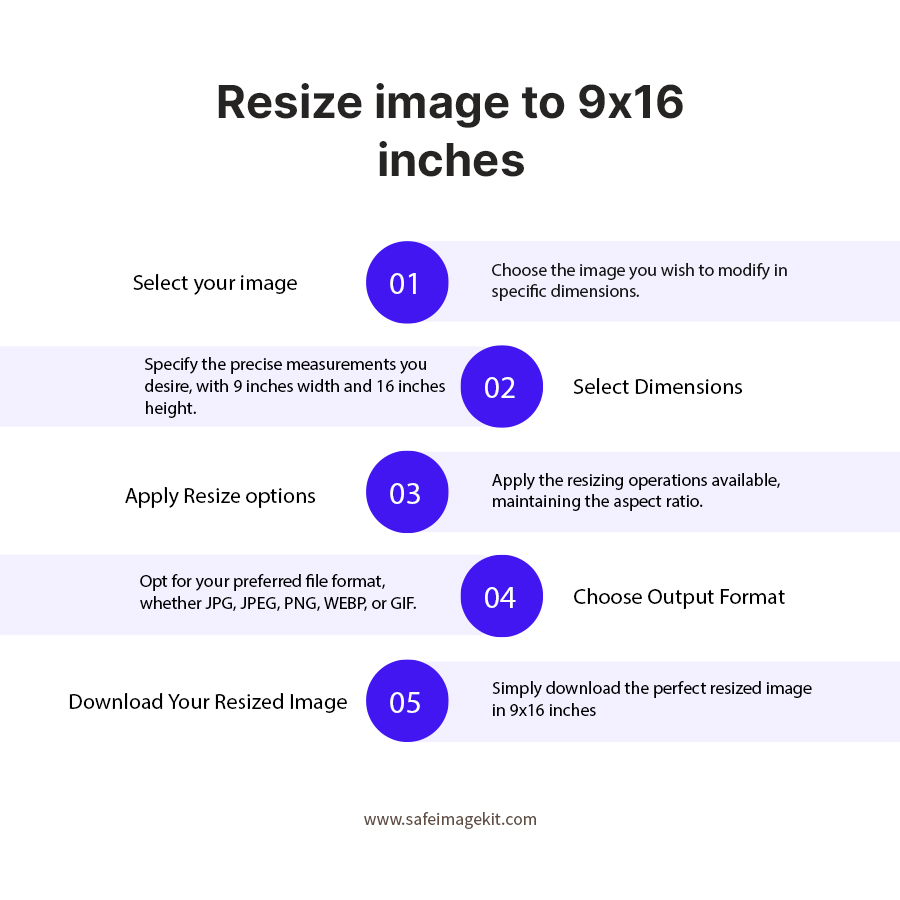
Yes. After setting the dimensions and other options, you can choose from PNG, JPG, JPEG, GIF, or WebP as the output format.
What should I do if the resized image does not have the dimensions I expected?
Check the selected width, height, and unit before downloading. Also check whether the aspect-ratio lock is enabled, because it can affect how the dimensions respond when you change one measurement.
Is 1080 × 1920 a 9 × 16 image size?
Yes. 1080 × 1920 pixels is a commonly used pixel size with the same 9:16 width-to-height relationship as 9 × 16 dimensions. To create this size, enter 1080 for the width and 1920 for the height, then select pixels as the unit.
What does 9:16 mean for 9 × 16 image dimensions?
A 9:16 describes the relationship between the width and height when an image is set to 9 × 16. On this page, you can enter 9 as the width and 16 as the height, then choose the required unit, such as pixels, inches, cm, or mm.