



Resize Images to 480x640 Dimensions

Resize images by simply uploading and customizing the settings

To resize image for 480 x 640 pixels
add-image CHOOSE FILE

or drop your file here

Easy File Upload Options
Our image resizer allows you to upload images effortlessly by clicking the “Choose File” button, enabling quick selection from your device. You can also import images directly from your cloud storage services like Google Drive or Dropbox, making access seamless. No need to download images manually; simply connect your accounts and select files within the interface.
Customizable Dimensions and Units
The tool offers precise control over image dimensions, allowing you to manually input specific sizes like 480x640 pixels, with support for all standard units: pixels, centimeters, millimeters, and inches. You can effortlessly switch between these units, ensuring compatibility with various project needs.
DPI Adjustment for Quality Control
You can specify the DPI (dots per inch) setting; options include 72, 96, 200, and 300 DPI. Adjusting DPI helps control the print quality and resolution of your images. Additionally, you can set the image quality between 0.1 and 1, depending on your needs. The control over quality allows you to balance visual fidelity and file size efficiently.
Flexible Resize Types
Choose from different resize modes such as Stretch, Fit & Background Blur, and Fit & Background Color. Stretch mode enlarges or distorts your image to fit the specified dimensions. Fit & Background Blur resizes the image while blurring the background to create a focus effect. Fit & Background Color lets you choose a background color from a palette.
Privacy and Security
Your images are uploaded securely via encrypted connections, ensuring your privacy. The tool does not store or share your images, maintaining confidentiality. Once the resizing process is complete and you've downloaded your image, the files are automatically deleted from our servers.
No Download or Installation Required
The web-based tool runs directly in your browser, eliminating the need to download or install any software. This means you can access it instantly from any device with internet connectivity. It’s designed for convenience, allowing quick adjustments without technical barriers. You can use it on any operating system, Windows, Mac, Linux, or mobile platforms.
how to image

Steps to Resize Image to 480x640 Dimensions

  1. 1.Upload your image from the available options.
  2. 2.Select the resize type that suits your needs.
  3. 3.Set the quality level and specify DPI if needed.
  4. 4.Pick the desired file format.
  5. 5.Once complete, click 'Download' to save your image in 480x640 dimensions.
  6. 6.You can choose different dimensions and units accordingly.

FAQ's

Why is resizing an image to 480x640 important?

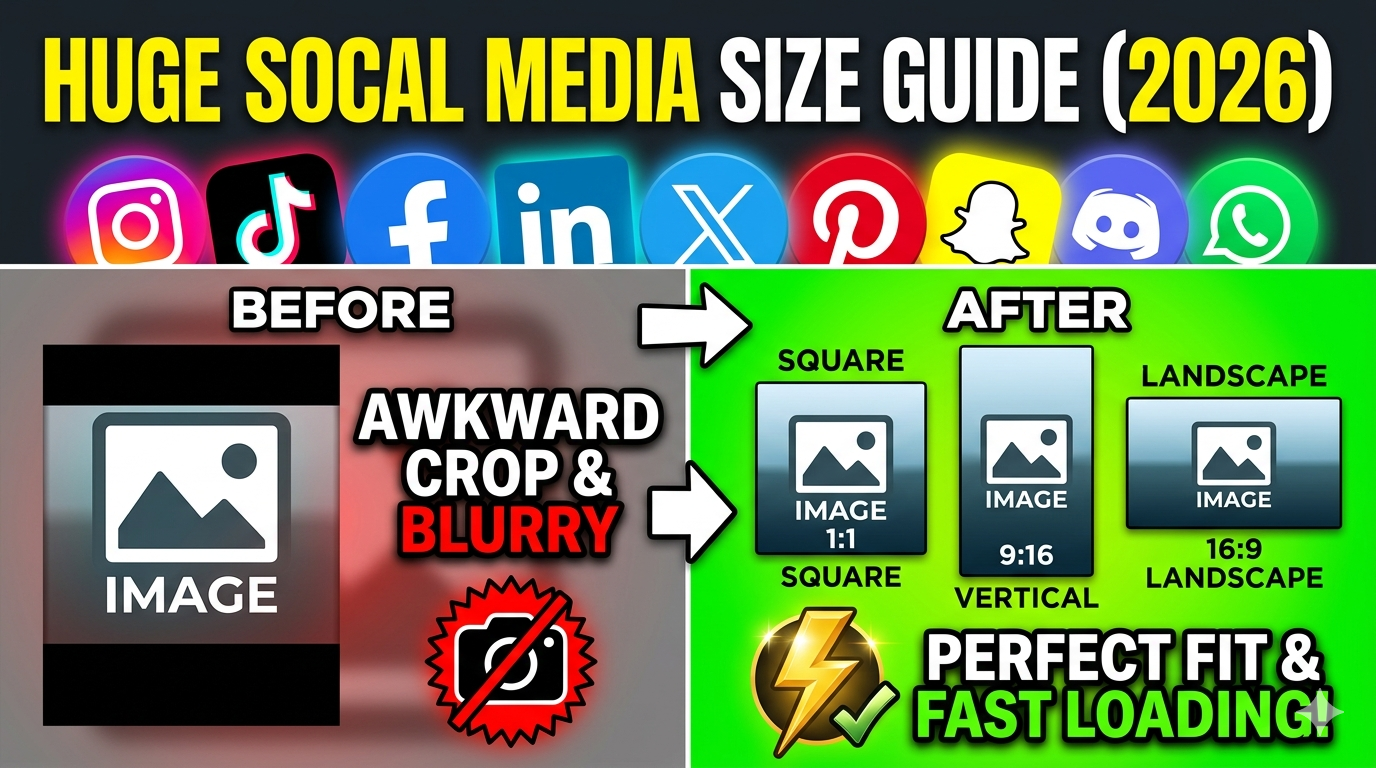
Resizing images to 480x640 pixels ensures they are optimized for various digital platforms, especially social media and web use. This size maintains a good balance between image quality and file size, making uploads faster. It is a standard resolution for profile pictures, thumbnails, and mobile content. Resizing helps prevent distortion and ensures your images fit perfectly within designated spaces. This size is also ideal for printing small photos or creating consistent visual content.

Where can I use a 480x640 image?

This resolution is perfect for social media platforms like Instagram, Facebook, and Twitter. It’s suitable for profile pictures, story posts, and small banners. You can also use it for product images on e-commerce sites or online catalogs. It’s ideal for mobile app icons and thumbnails due to its compact size. Print projects like flyers or small posters can also benefit from this resolution.

Can I resize multiple images to 480x640 at once?

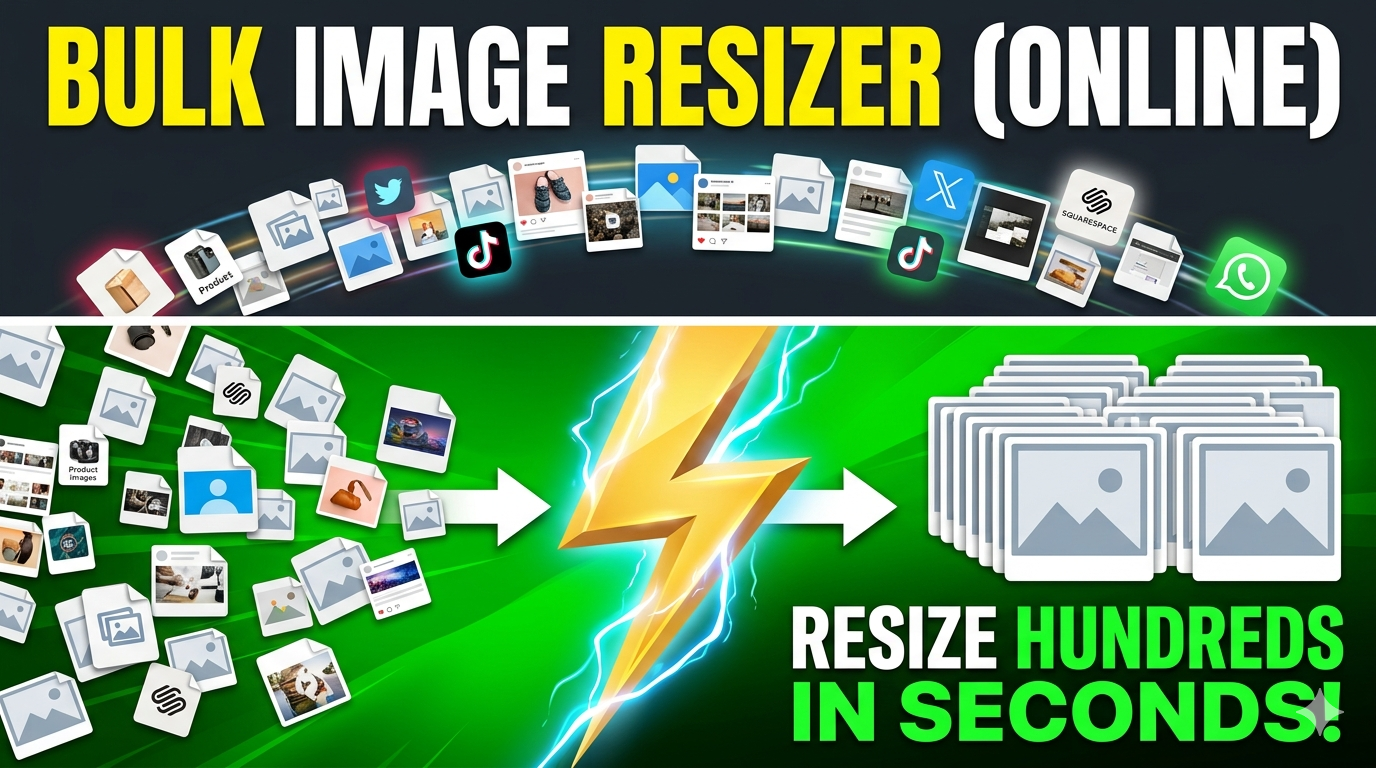
To resize multiple images at once, please visit https://imgresizers.com/multiimage which allows you to process multiple images simultaneously. This feature saves time when preparing large sets of photos for projects or uploads. You can set the desired size once and apply it to all selected images.

Is the tool free to use?

Yes, our image resize tool is completely free, with no hidden charges or subscriptions. You can resize unlimited images without any costs. Enjoy instant, high-quality resizing without financial commitment.

Can I resize images to 480x640 dimensions directly from my mobile device?

Yes, the tool is fully compatible with mobile browsers. Its responsive design ensures smooth operation on smartphones and tablets.

How fast is the resizing process?

The process is instant, typically completing within a few seconds per image.

What formats are supported for exporting?

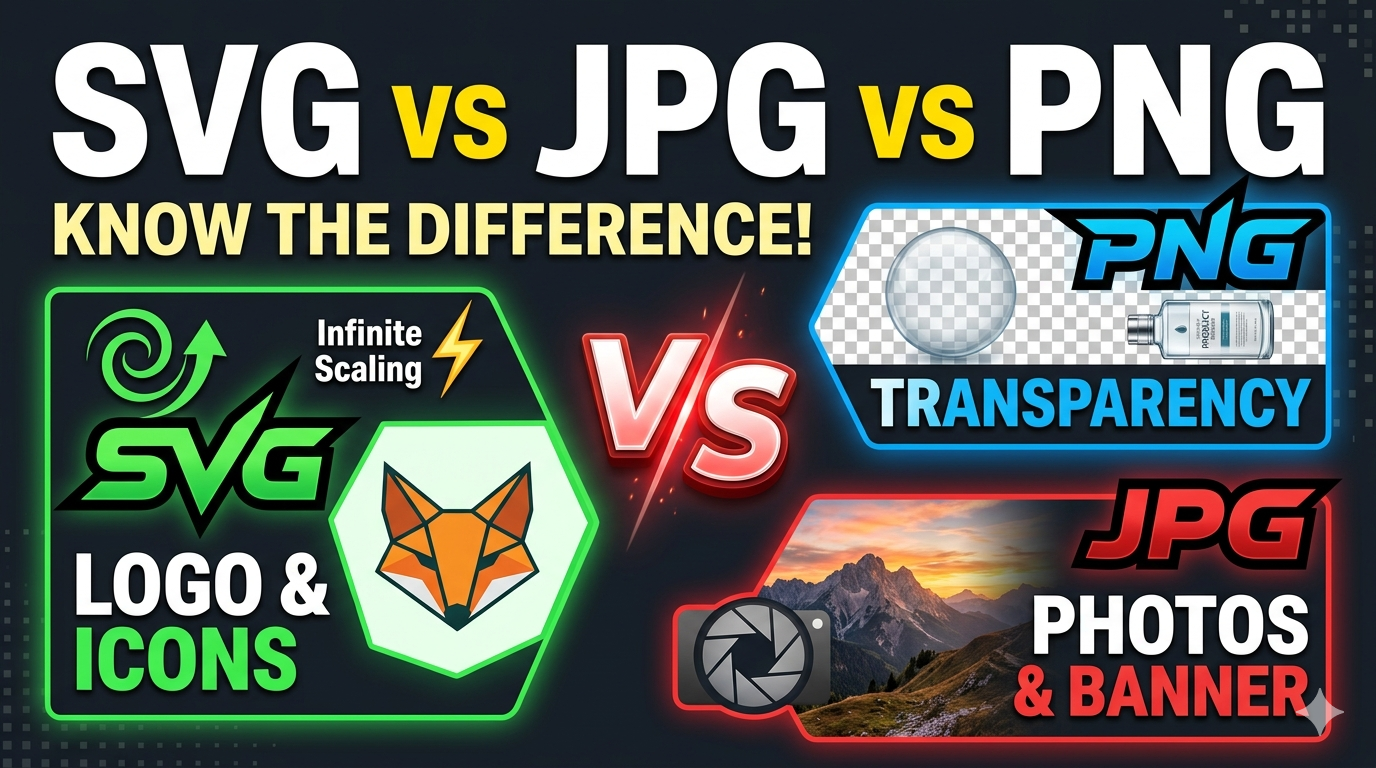
You can export images in PNG, JPG, JPEG, WebP, and GIF formats. PNG supports transparency, JPG/JPEG is great for photos, and WebP offers web optimization. GIF is suitable for animations or simple graphics. Choosing the right format helps ensure your image looks perfect on any platform.

What is a 480×640 image size?

A 480×640 image is a portrait-oriented image with a width of 480 pixels and a height of 640 pixels. It has a 3:4 aspect ratio, making it suitable for profile images, mobile layouts, portrait thumbnails, product listings, and other vertical image formats.

What aspect ratio is a 480×640 image?

A 480×640 image has a 3:4 aspect ratio. This means the image height is 1.33 times greater than its width, creating a vertical portrait format. Images with the same ratio can be resized to 480×640 without cropping or distortion.

What is a 480×640 image used for?

A 480×640 image is commonly used for:

Profile pictures and avatars
Mobile app images
Portrait thumbnails
Online directories
Product listing images
ID-style photos
Vertical website layouts

Is 480×640 a portrait image size?

Yes. Since the height (640 pixels) is greater than the width (480 pixels), it is considered a portrait image size. Portrait dimensions are commonly used for images that focus on people, products, or vertical content.

Will resizing an image to 480×640 reduce quality?

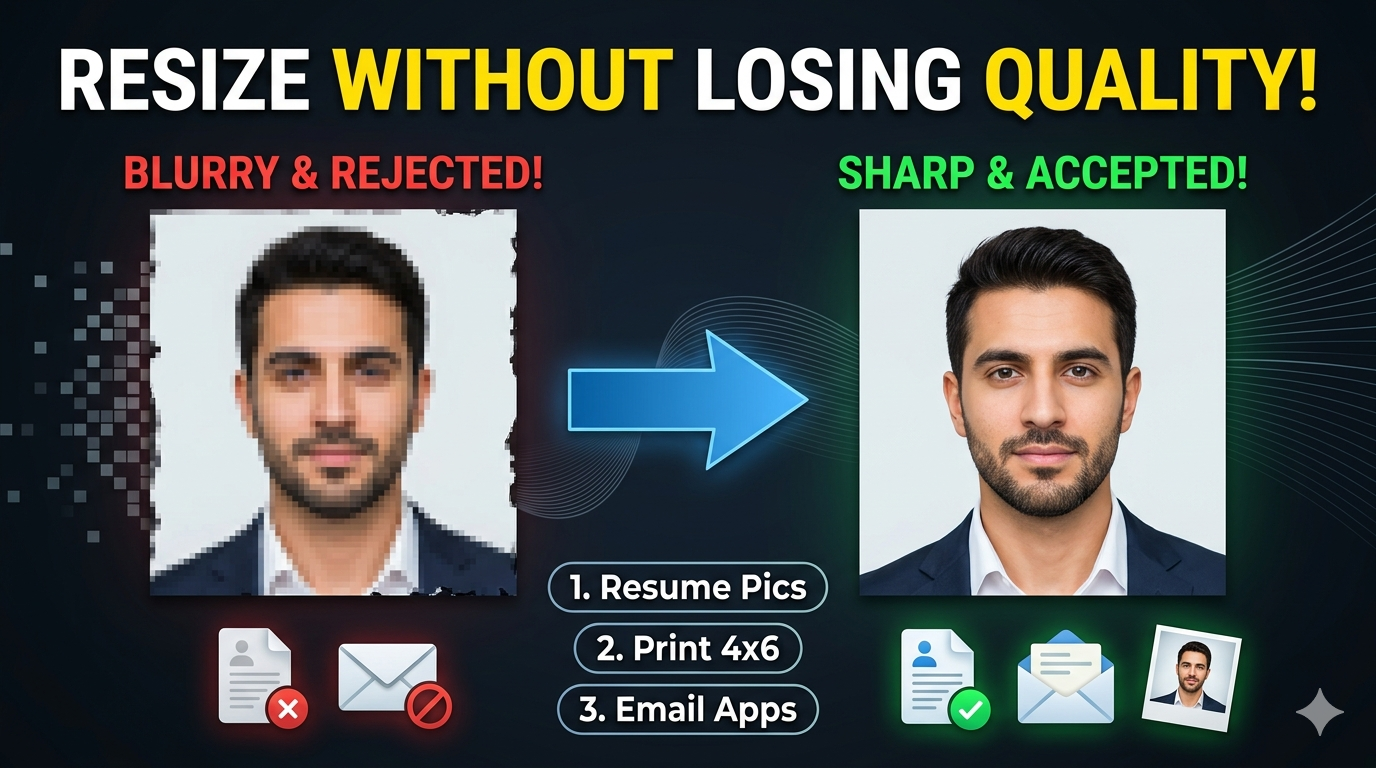
The quality depends on the original image resolution. Reducing a larger image to 480×640 usually maintains good quality, while enlarging a smaller image may make it appear blurry or pixelated. Using a high-resolution original image provides better results.

Should I lock the aspect ratio when resizing an image to 480×640?

Yes. Locking the aspect ratio keeps the original proportions and prevents stretching or distortion. If your image does not already have a 3:4 ratio, you may need to crop it before resizing to achieve the correct 480×640 dimensions.

Can I resize a landscape image to 480×640?

Yes, but a landscape image may need cropping because its proportions are different from the 3:4 portrait ratio. Cropping helps fit the image correctly without stretching important details.

What is the difference between 480×640 and 640×480?

Both dimensions contain the same number of pixels, but their orientations are different. 480×640 for portrait orientation (vertical) and 640×480 for landscape orientation (horizontal).

Is 480×640 suitable for printing?

A 480×640 image is mainly suitable for digital use. It can be printed at small sizes, but larger prints require higher-resolution images to maintain sharpness. Print quality depends on the DPI and the available pixel resolution.

What image format is best for a 480×640 image?

The best format depends on the purpose:

JPEG/JPG: Best for photographs with smaller file sizes
PNG: Best for graphics, illustrations, and transparency
WebP: Good for websites because it provides efficient compression with good quality

rating-img
Rate this tool
3.88/5   81 votes

About The Author

Rk Shree

RK Shree - A science enthusiast with a poetic flair, and possesses an insatiable desire to explore diverse fields seeking new knowledge and experiences. My work ethic is highly disciplined and dedicated. I take pleasure in pursuing creative endeavors that captivate me.