





FAQ's
What does a 4.5 × 3.5 cm photo size mean?
It means the finished image is set to 4.5 cm in width and 3.5 cm in height. This gives the image a fixed 9:7 aspect ratio.
How do I make a photo 4.5 cm × 3.5 cm in JPG?
Upload the photo, check the automatically selected 4.5 × 3.5 cm dimensions, and select JPG as the output format. After processing, preview the image and download the JPG version.
What happens if my photo is wider than 4.5 × 3.5 cm?
A wider photo has a different aspect ratio from the required 4.5:3.5 ratio. Using a fit or crop-based approach can keep the proportions while bringing the photo into the required dimensions.
What happens if my photo is taller than 4.5 × 3.5 cm?
The extra height cannot be retained while keeping the exact 4.5 × 3.5 cm proportions without changing the image shape. A suitable fit or crop option can help place the important part of the photo within the required frame.
Does 4.5 × 3.5 cm have the same proportions as 3.5 × 4.5 cm?
No. The two sizes have the same measurements but opposite orientation. 4.5 × 3.5 cm is landscape, while 3.5 × 4.5 cm is portrait.
How do I resize an image to 3.5 × 4.5 cm instead?
Set the width to 3.5 cm and height to 4.5 cm, or select the 3.5 × 4.5 cm preset when available. This changes the orientation from landscape to portrait.
Why does a 4.5 × 3.5 cm photo look stretched?
Stretch mode forces the entire source image into the 4.5 × 3.5 cm frame. If the original photo has a different aspect ratio, its contents may appear wider or narrower than in the original.
How do I crop a photo to 4.5 × 3.5 cm?
A photo with a different shape needs to be fitted to the 9:7 ratio before the final dimensions are applied. Choosing an appropriate fit resize mode approach helps keep the important part of the photo inside the frame.
Why are parts of my photo missing after resizing?
When a source image has a different aspect ratio, fitting it into a fixed 4.5 × 3.5 cm frame may require some cropping. This can remove areas near the edges while keeping the required dimensions and proportions.
What pixel size corresponds to 4.5 × 3.5 cm?
The pixel dimensions depend on the selected DPI. For example, at 300 DPI, 4.5 × 3.5 cm corresponds to approximately 531 × 413 pixels.
What is the 4.5 × 3.5 cm size at 200 DPI?
At 200 DPI, 4.5 × 3.5 cm corresponds to approximately 354 × 276 pixels. The exact pixel dimensions are determined by the conversion between the physical measurement and DPI.
What is the 4.5 × 3.5 cm size at 300 DPI?
At 300 DPI, the dimensions are approximately 531 × 413 pixels. This is different from the pixel dimensions produced at lower DPI even though the physical size remains 4.5 × 3.5 cm.
Does changing DPI change the 4.5 × 3.5 cm dimensions?
The physical dimensions can remain 4.5 × 3.5 cm while the corresponding pixel dimensions change with DPI. Therefore, DPI and pixel dimensions should be checked together when a requirement specifies both.
Why does my 4.5 × 3.5 cm photo have different pixel dimensions from another photo?
Two images can represent the same physical size at different DPI settings. A 4.5 × 3.5 cm image at 200 DPI therefore has fewer pixels than one at 300 DPI.
Why is my 4.5 × 3.5 cm photo larger than 2 MB?
Physical dimensions alone do not determine file size. Pixel dimensions, image format, quality/compression settings, and the amount of detail in the photo can all affect the final file size.
How do I reduce a 4.5 × 3.5 cm photo that is over 2 MB?
First keep the required 4.5 × 3.5 cm dimensions, then adjust the image quality and choose an appropriate output format. Lowering quality can reduce the file size, although excessive compression can affect visible detail.
Why does converting a photo to JPG change its file size?
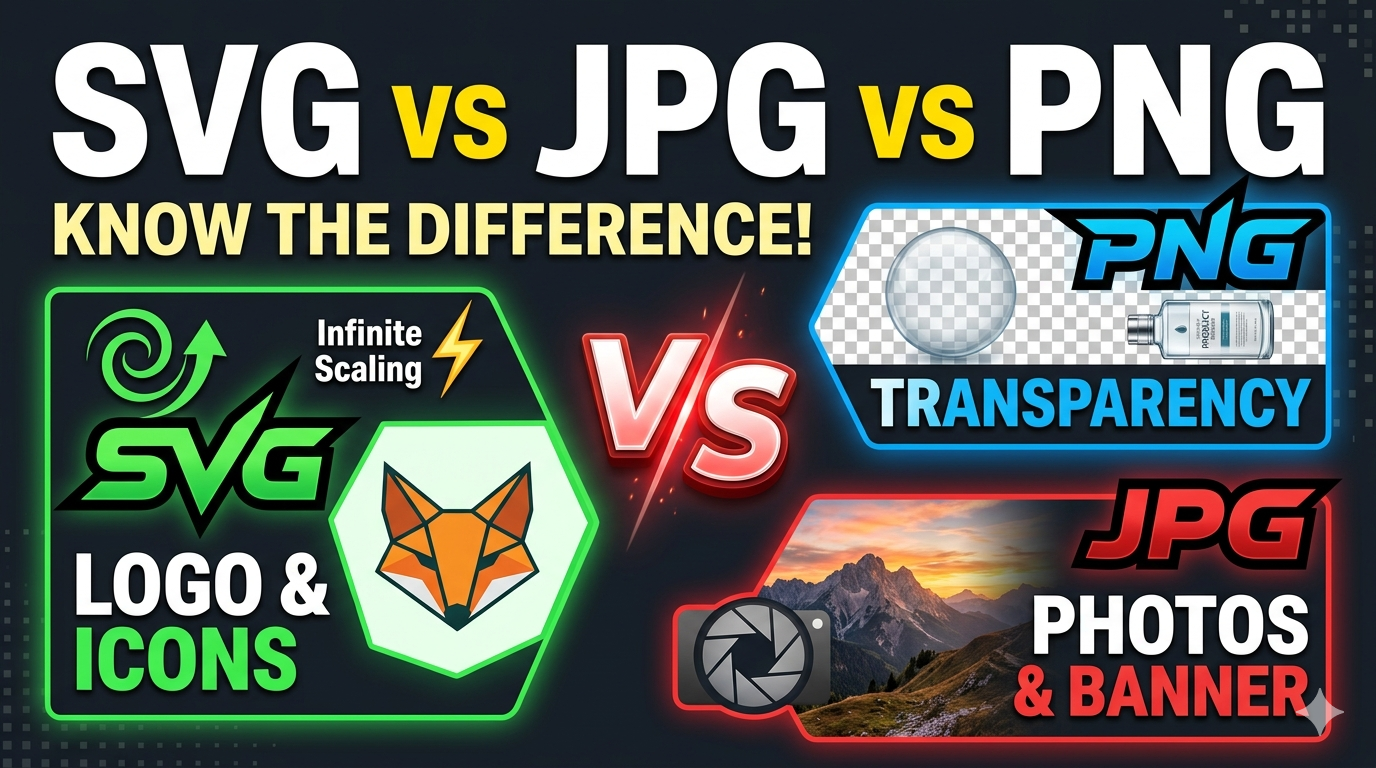
JPG uses lossy compression, so the resulting file can have a different size from the original PNG, WebP, or other format. The selected quality level also affects the size of the JPG output.
Why does my resized JPG look less clear than the original?
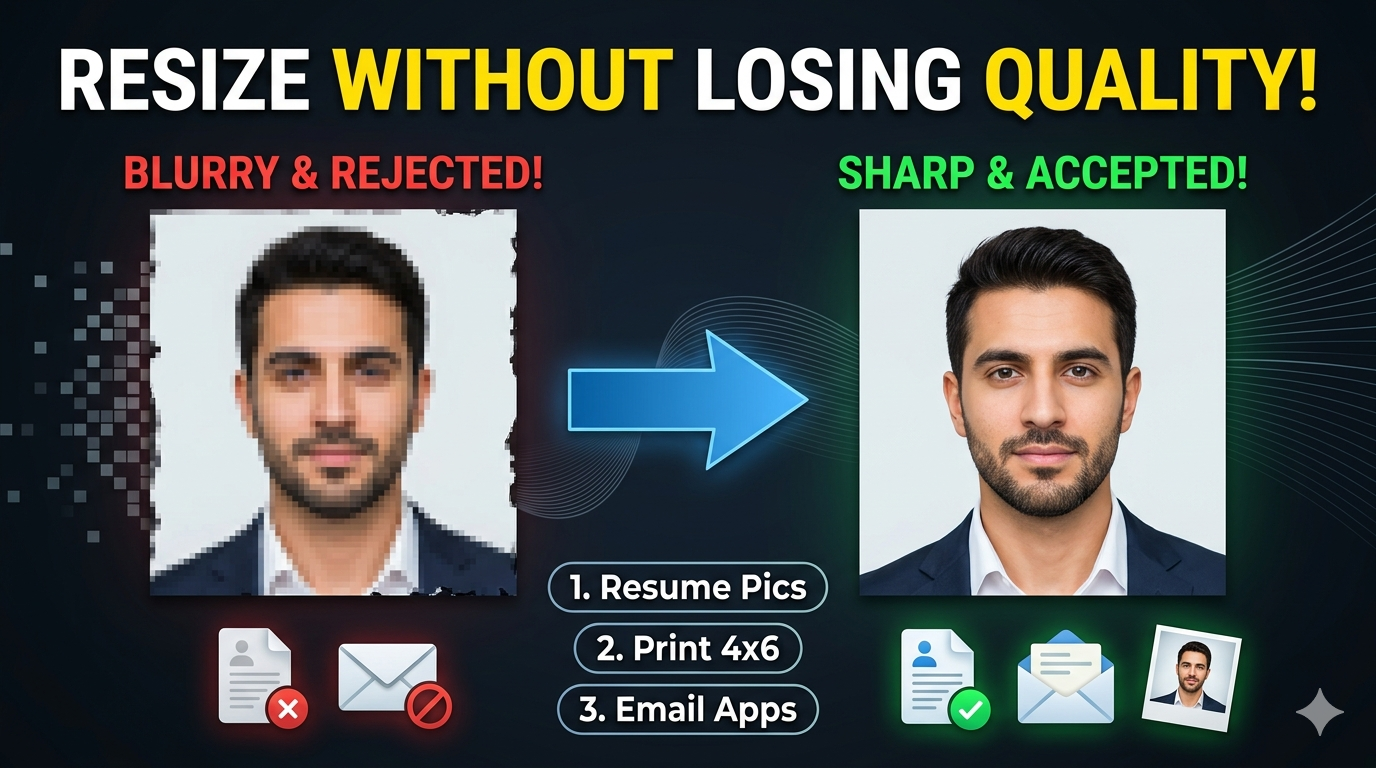
Resizing changes the image's pixel dimensions, and JPG compression can remove some visual information. Using a suitable quality level and avoiding unnecessary repeated resizing helps retain more detail.
What happens when a small photo is enlarged to 4.5 × 3.5 cm?
Enlarging a small source image requires additional pixels to be generated during resizing. If the original contains insufficient detail, the enlarged result may appear softer than the source.
Why does the photo background change after resizing?
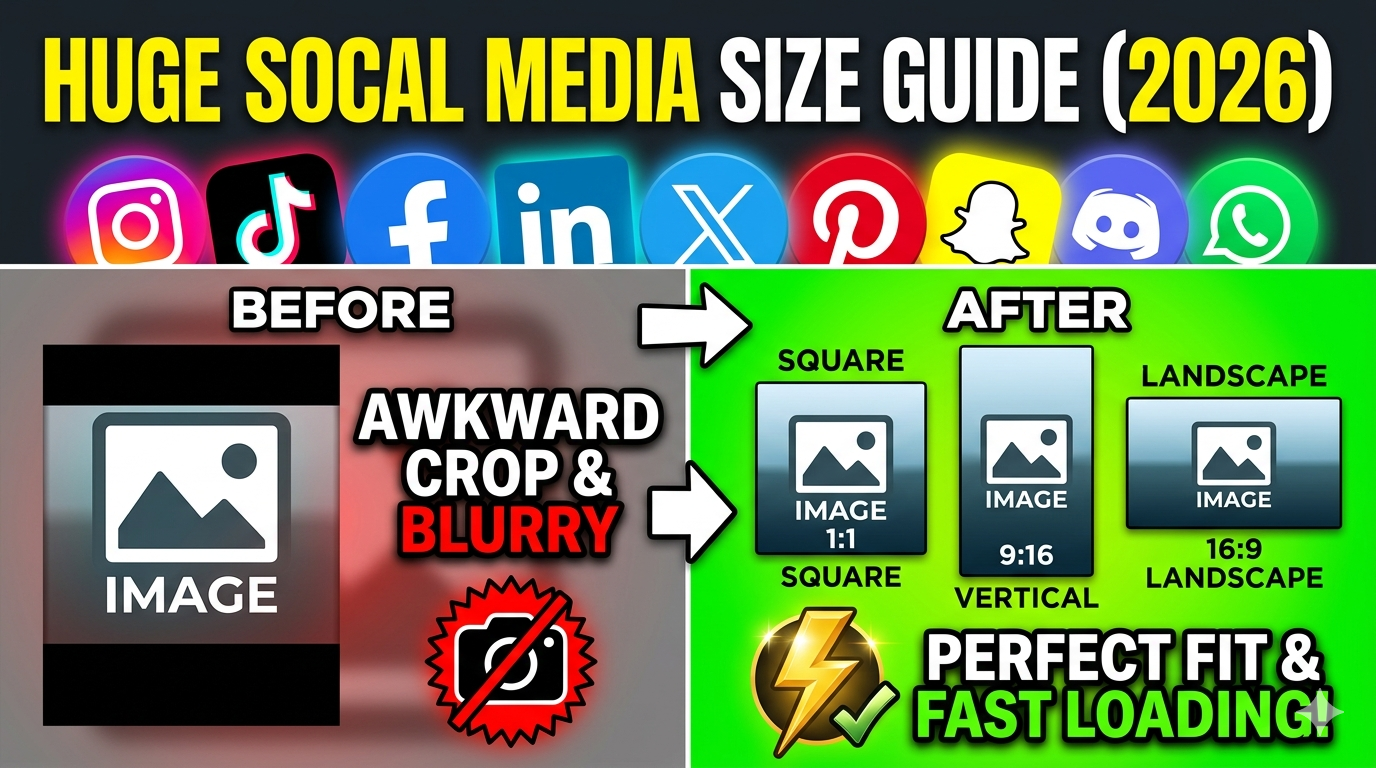
When the original aspect ratio does not match 4.5 × 3.5 cm, the fit modes can add space around the image. Depending on the selected mode, that space can appear as a blurred background or a chosen background color.
Why does the downloaded photo have a different format from the original?
The output format can be selected separately from the original file format. For example, a PNG source can be resized and downloaded as JPG if JPG is selected as the output format.
What should I check before downloading a 4.5 × 3.5 cm photo?
Check the width and height, orientation, photo framing, DPI, quality, and output format. If there is also a maximum file-size requirement, check the final file size before submitting it.