





FAQ's
Do I need an internet connection to resize image to 250x250?
Yes, since imgresizers.com is an online tool, you need an active internet connection to upload and process your image. The entire resizing happens in your browser, so without internet access, the tool will not work. However, the process is lightweight and quick, so it does not consume much data and works smoothly even on average connections.
Can I resize to larger square sizes like 500x500 or 800x800?
Yes, you can easily resize your image to larger square sizes like 500x500 or 800x800 using imgresizers.com. You just need to enter your desired width and height manually or select from the available size options. The tool quickly adjusts your image to the selected dimensions, and you can also fine-tune settings like quality, DPI, and resize type to get the best possible output for your needs.
Can I control image quality before downloading?
Yes, imgresizers.com allows you to adjust quality settings before downloading your image. This helps you control how sharp or compressed the final output should be, depending on whether you prioritize clarity or file size.
Do I need to create an account to resize image at imgresizers.com?
No, you do not need to create an account or sign up to resize any image at imgresizers.com. The tool is designed for quick and easy access, so you can directly upload your image and start resizing without any registration process. This saves time and makes the experience smooth, especially when you need to resize images quickly without extra steps.
Can I use 250x250 images for email layouts?
Yes, 250x250 images can be used in email designs for thumbnails, icons, or small content blocks. Their balanced size helps maintain clarity while keeping the email lightweight for better loading performance.
What is the recommended size for images on social media platforms?
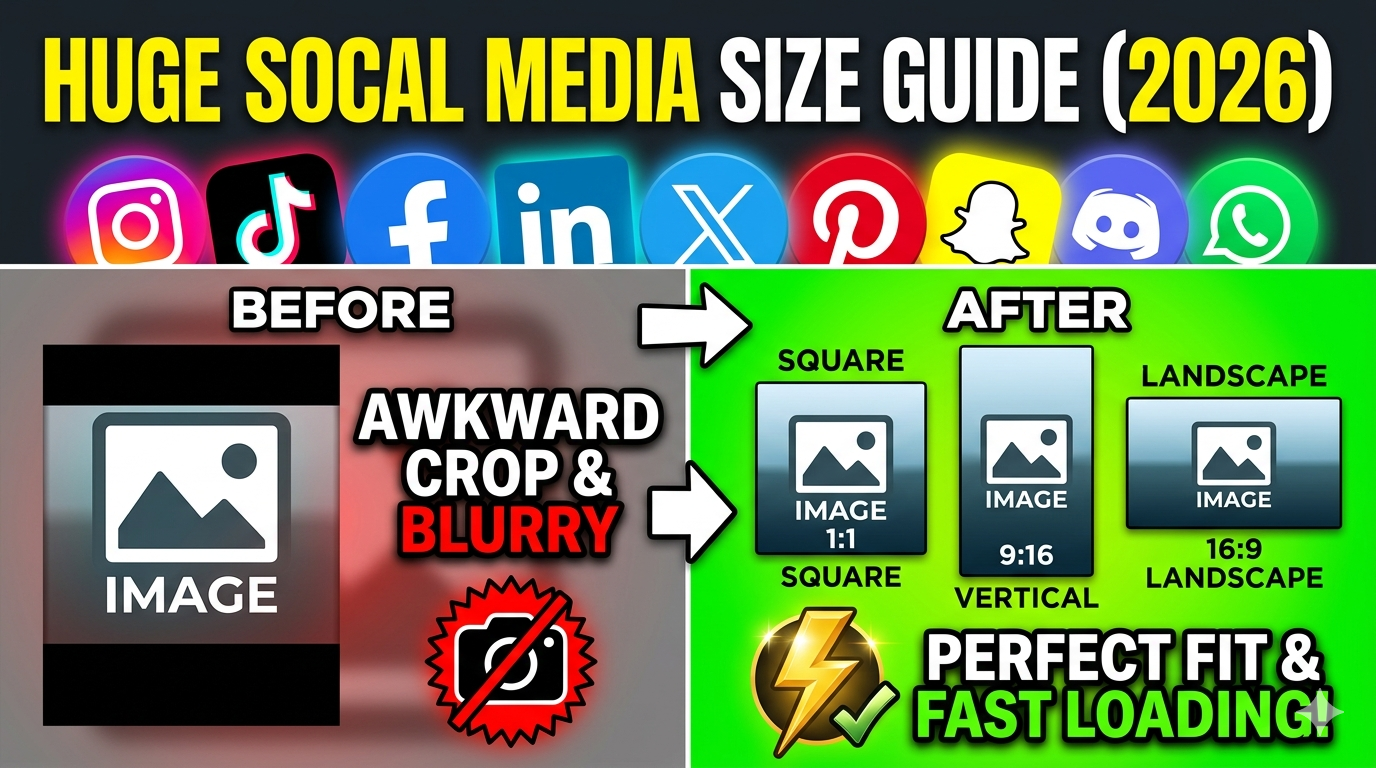
The recommended image size for social media depends on the platform you are using and the type of content you want to post. For example, square images like 1080x1080 are widely used on Instagram, while other platforms may prefer different dimensions for posts, covers, or banners. With imgresizers.com, you can easily resize your image to any required size by simply entering or selecting the dimensions, making it easy to prepare images for any social media platform without confusion.
Is it safe to upload files from my Google Drive/Dropbox?
Yes, it is safe to upload files from your Google Drive or Dropbox as long as you are using a secure connection. ImgResizers.com processes your images only for resizing and does not store them permanently. Once the process is completed, the files are removed automatically, ensuring your data remains private and protected.
Are there any limitations to resize the image to 250x250 pixels?
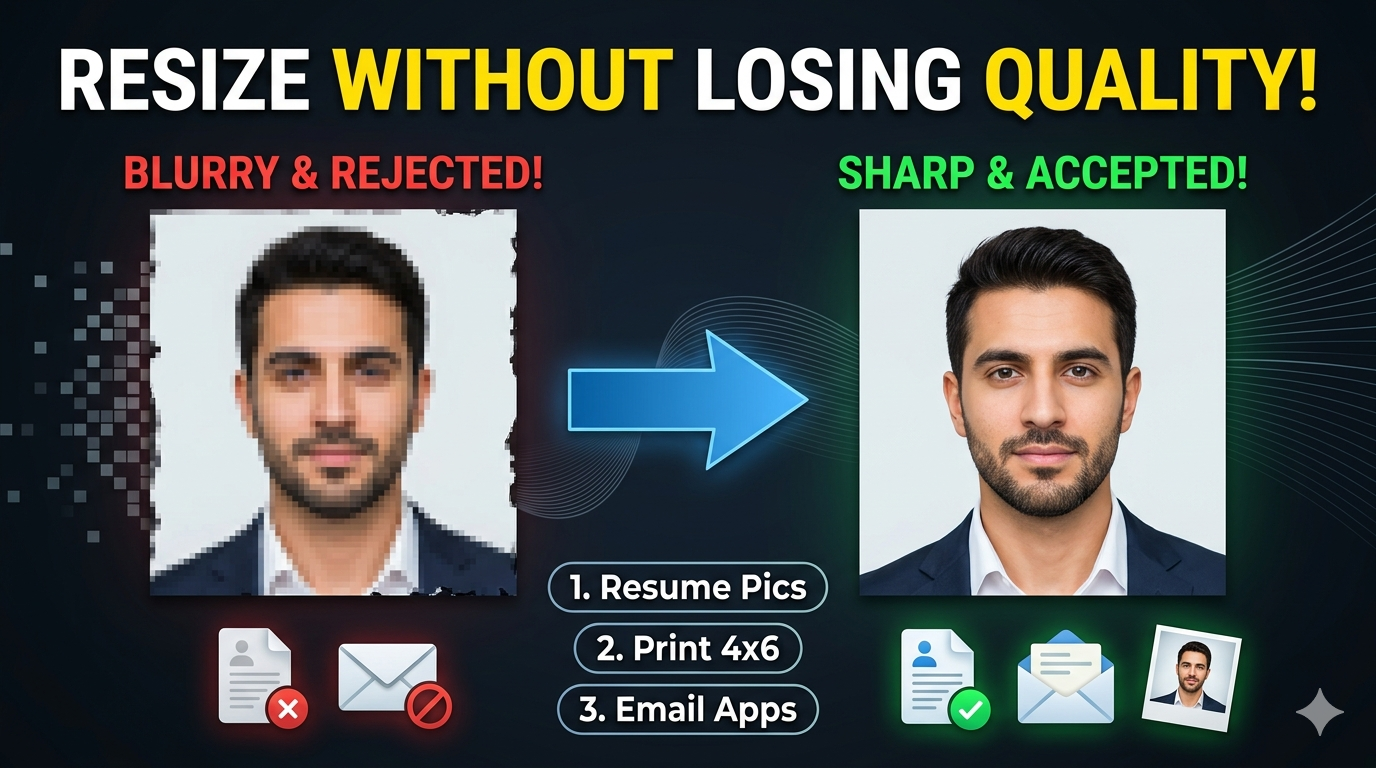
There are no strict limitations when resizing an image to 250x250 using imgresizers.com, but the final quality depends on the original image. If the source image is very small or low quality, the output may appear slightly blurred. For best results, it is recommended to use a higher resolution image before resizing.
Can I create smaller thumbnails from this size?
Yes, you can easily convert a 250x250 image into smaller sizes using imgresizers.com. For example, you can resize image to 100x100 or resize image to 50x50 if you need compact thumbnails for tighter layouts. This helps maintain consistency while adapting to different space requirements.
Can I adjust DPI for better display quality?
Yes, imgresizers.com provides DPI settings that allow you to control the output quality based on your needs. Higher DPI can improve clarity for detailed displays, while lower DPI can help reduce file size for faster loading on websites or mobile devices.