



FAQ's
How do I resize a photo to 200 × 200 pixels?
Upload your photo, and the tool starts with a target size of 200 × 200 pixels. You can then choose how the image should fill the square and download the resized version.
What does a 200 × 200 image size mean?
It means the image is 200 pixels wide and 200 pixels high. Because both dimensions are equal, the resulting image has a square 1:1 shape.
Is 200 × 200 pixels the same as a 200 × 200 photo size?
Yes, when the unit is set to pixels, 200 × 200 means the image contains 200 pixels across and 200 pixels down. If you change the unit to cm, mm, or inches, the same numbers represent physical dimensions instead.
How can I convert an existing image to 200 × 200 pixels without entering the size?
The tool automatically starts with 200 × 200 pixels, so there is no need to type those dimensions manually. Upload your image, adjust the framing if needed, and process it at the preset size.
What happens if my original photo is rectangular?
A rectangular photo does not naturally fit a square 200 × 200 frame. You can stretch it to fill the square or use a fit option that preserves the original proportions and fills the unused area with a blurred or solid-color background.
Will resizing a photo to 200 × 200 crop part of the image?
The available resize methods let you choose how the image is fitted into the square, so you can avoid unwanted cropping by using a proportional fit with a background.
How do I make a 200 × 200 image without stretching the photo?
Use one of the fit options instead of Stretch. Fit & BG Blur or Fit & BG Color preserves the source image's proportions while filling the remaining square area with a background.
Why does my image look distorted after resizing to 200 × 200?
This usually happens when a rectangular image is stretched directly into a square. If preserving the original shape is more important, switch from Stretch to a fit option with a blurred or solid-color background.
What is the difference between stretch and fit for a 200 × 200 image?
Stretch changes the image proportions so the entire 200 × 200 area is filled. The fit options preserve the original proportions and use the remaining space around the image instead.
Can I use a blurred background for a 200 × 200 photo?
Yes. Select Fit & Blur to preserve the original proportions while filling the unused parts of the square with a blurred version of the image.
Can I use a plain background instead of a blurred background?
Yes. Fit & Color lets you preserve the image proportions and fill the remaining area with a solid background color.
Can I change the 200 × 200 dimensions if I need a different size?
Yes. The 200 × 200 setting is the starting target, not a permanent restriction. You can change the width, height, or unit when your actual requirement is different.
What if I need 200 × 200 in centimeters instead of pixels?
Change the measurement unit from pixels to centimeters and enter the physical dimensions you require. The pixel dimensions and physical dimensions should not be treated as interchangeable.
Does DPI matter when creating a 200 × 200 image?
DPI matters when the image has a specific resolution or physical-size requirement, particularly for print-related use. It does not change the fact that a 200 × 200 pixel image contains 200 pixels in each direction.
Can I choose 300 DPI for a 200 × 200 image?
Yes, if 300 DPI is one of the available settings and your intended use requires it. You need to understand that DPI and pixel dimensions describe different aspects of an image, so changing DPI should not be confused with adding image detail.
Why does my 200 × 200 image look less sharp than the original?
Reducing a larger image to 200 × 200 pixels removes some of the original pixel information. Small text, fine details, and other elements may therefore appear less defined at the smaller output size.
Can I make a 200 × 200 image from a small photo?
Yes, provided the source image can be processed by the tool. Enlarging a small source to 200 × 200 may make existing softness or pixelation more noticeable because the tool cannot recreate detail that was not present in the original.
Can I create a JPG that is 200 × 200 pixels?
Yes. Set the target dimensions to 200 × 200 pixels and select JPG as the output format before downloading the result.
What image formats can be used for a 200 × 200 output?
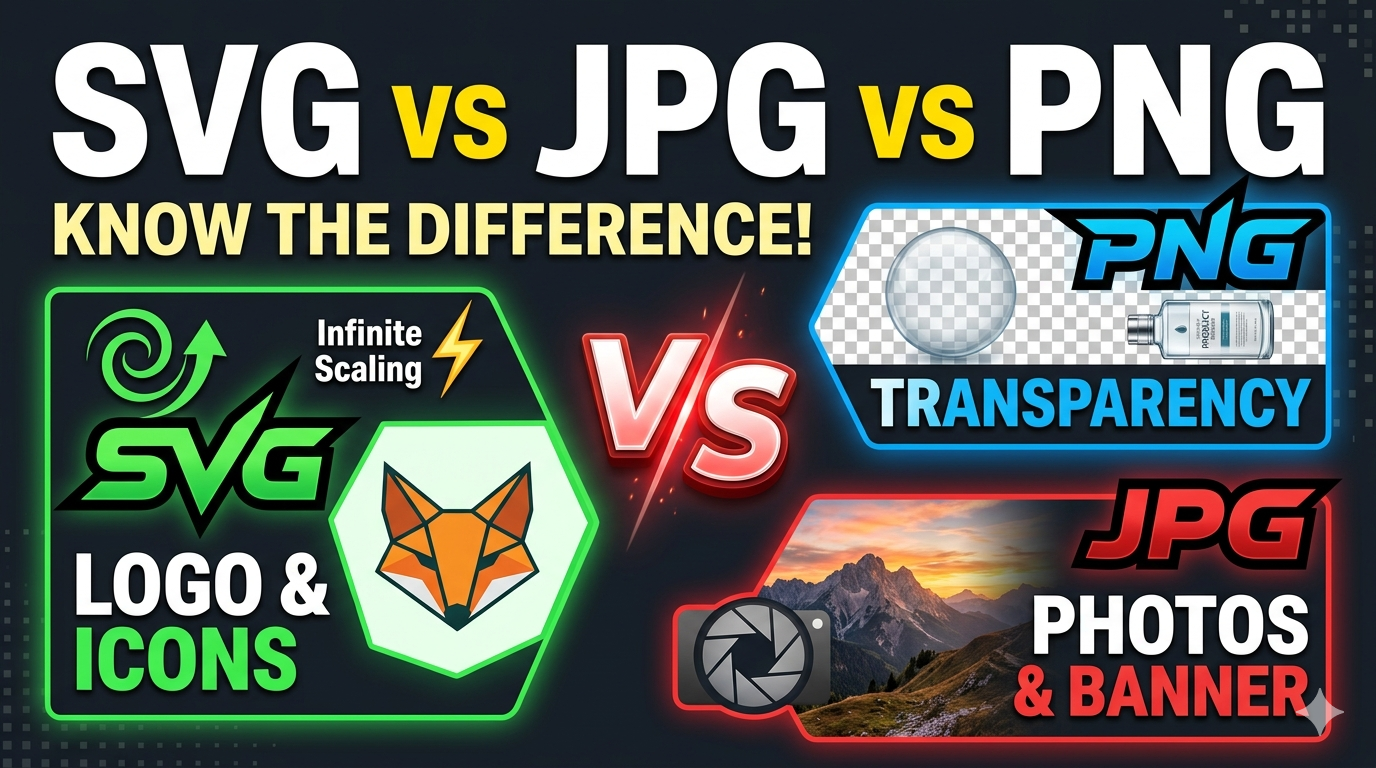
The tool provides JPG, JPEG, PNG, WebP, and GIF as output format choices. The appropriate format depends on whether you need transparency, compression, animation, or general image compatibility.
Why is my 200 × 200 JPG file a different size from another 200 × 200 JPG?
Pixel dimensions alone do not determine file size. JPG compression, image content, and the selected quality level can all affect how large the final file is.
Can I resize an 800 × 200 image to 200 × 200?
Yes, but the original 800 × 200 image has a 4:1 aspect ratio, while 200 × 200 is square. Depending on the selected resize method, the result may be stretched or fitted with additional background space.
What is the difference between an 800 × 200 image and a 200 × 200 image?
An 800 × 200 image is a wide rectangular image with a 4:1 aspect ratio. A 200 × 200 image is square with a 1:1 aspect ratio, so they have very different shapes even though both use pixel dimensions.
Can I drag and drop a photo to create a 200 × 200 image?
Yes. Drag the image file into the tool, or use the upload option to select it from your device. Google Drive and Dropbox are also available as alternative sources.
How can I check whether my photo is really 200 × 200 after resizing?
Preview the processed image before downloading it and check its dimensions after saving if you need to verify the file properties. The target setting for this page is 200 × 200 pixels when the unit is set to pixels.
Can I resize the same photo to 200 × 200 more than once?
Yes, but it is better to start from the original photo when creating a fresh 200 × 200 version. Processing an already resized copy can introduce additional quality loss, especially when the image is repeatedly recompressed.