




FAQ's
What does a 12 × 18 image size mean?
A 12 × 18 image has a width of 12 units and a height of 18 units. The actual physical or digital size depends on the unit selected, such as inches, centimeters, millimeters, or pixels.
What is the aspect ratio of a 12 × 18 image?
The 12 × 18 aspect ratio is 2:3. This means the height is one and a half times the width, making it a portrait-oriented proportion.
What is the 12 × 18 ratio in pixels?
The pixel dimensions depend on the required resolution. For example, a 12 × 18 inch image at 300 DPI is 3600 × 5400 pixels, while other DPI settings produce different pixel dimensions.
Is 12 × 18 the same as 18 × 12?
The dimensions contain the same numbers but represent different orientations. 12 × 18 is portrait, while 18 × 12 is landscape.
What is the 12 × 18 frame size?
A 12 × 18 frame is designed for an image measuring 12 × 18 in the same unit of measurement. A frame of this size follows the 2:3 aspect ratio.
What happens when a 4:3 photo is resized to 12 × 18?
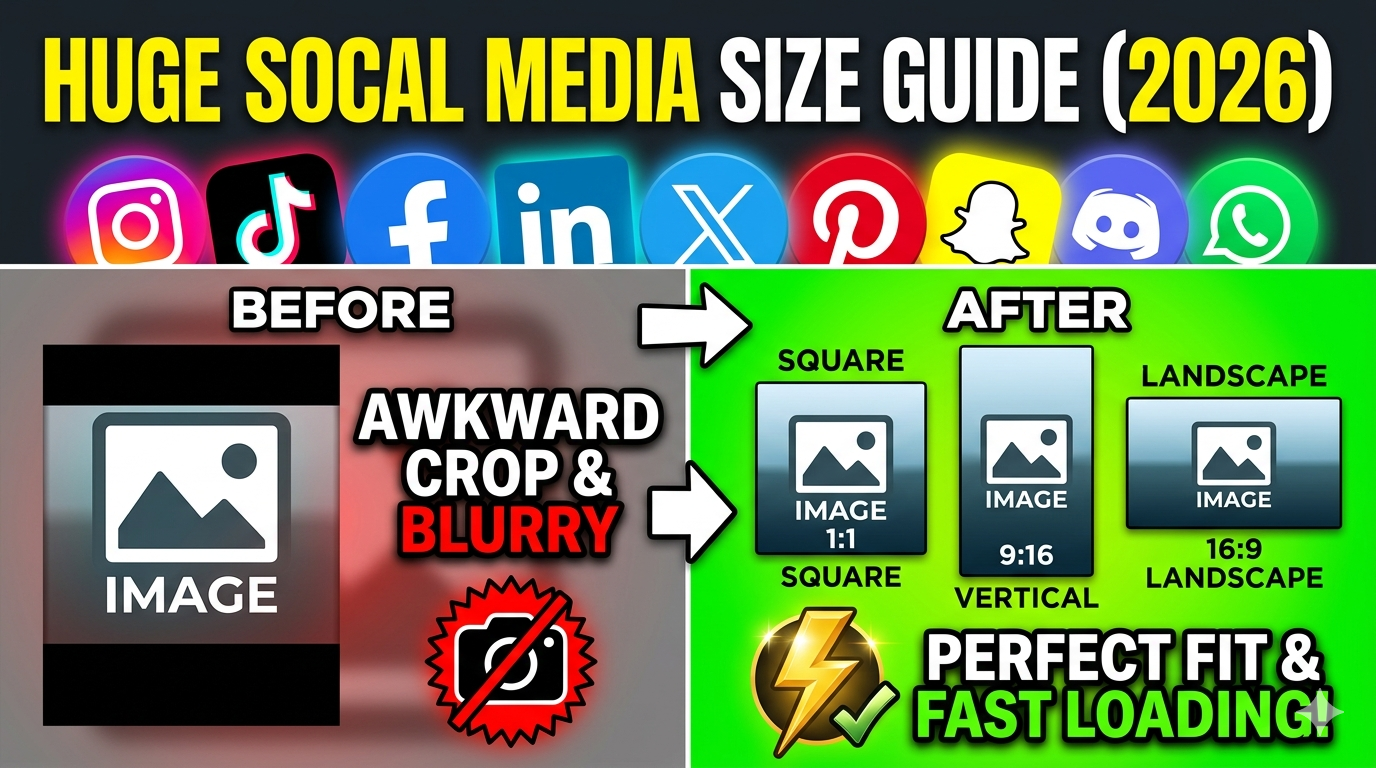
A 4:3 photo does not naturally match the 2:3 ratio of 12 × 18. Depending on the resize method, the image may be cropped, stretched, or fitted with additional background space.
Why is my photo cropped when I resize it to 12 × 18?
Cropping can occur when the original image has a different aspect ratio from 2:3. Removing some of the image edges allows the remaining content to fill the complete 12 × 18 frame without distortion.
How do I keep the entire photo inside a 12 × 18 frame?
Use a fit-based resize option when retaining the complete image is more important than filling every part of the frame. The tool can preserve the original proportions and use blur or color in the remaining area.
Why does my photo look stretched at 12 × 18?
Stretching occurs when an image with a different aspect ratio is forced into the 2:3 dimensions. This changes the proportions of objects in the original photo.
When is Fit & Blur useful for a 12 × 18 image?
Fit & Blur is useful when the complete photo needs to remain visible without stretching it or cutting away the edges. The unused space is filled with a blurred version of the image to complete the 12 × 18 frame.
What happens when a square photo is resized to 12 × 18?
A square image has a 1:1 ratio, so it does not naturally fit the 2:3 proportions. It must either be cropped, stretched, or fitted with additional background space.
What happens when an image is already 2:3?
An image that already has a 2:3 aspect ratio can fit the 12 × 18 proportions without changing its shape. Resizing then primarily changes its dimensions rather than requiring extra cropping or background space.
What pixel dimensions are needed for a 12 × 18 inch image at 300 DPI?
At 300 DPI, a 12 × 18 inch image corresponds to 3600 × 5400 pixels. This provides a higher pixel count than the same physical size prepared at a lower DPI.
What are the pixel dimensions of 12 × 18 inches at 200 DPI?
At 200 DPI, 12 × 18 inches corresponds to 2400 × 3600 pixels. The physical dimensions remain 12 × 18 inches, but the pixel dimensions are lower than at 300 DPI.
Why does changing DPI change the pixel size of a 12 × 18 image?
DPI determines how many pixels are represented per inch. Therefore, the same 12 × 18 inch physical size requires different numbers of pixels at different DPI settings.
Does changing the unit from inches to pixels change the 12 × 18 ratio?
No. Changing the measurement unit does not change the underlying 2:3 proportion when the width and height are converted correctly. The numerical values change because they represent different measurement systems.
What happens when the aspect ratio is locked while resizing to 12 × 18?
Locking the aspect ratio keeps the width and height connected proportionally. This prevents the image from being accidentally distorted when changing one dimension.
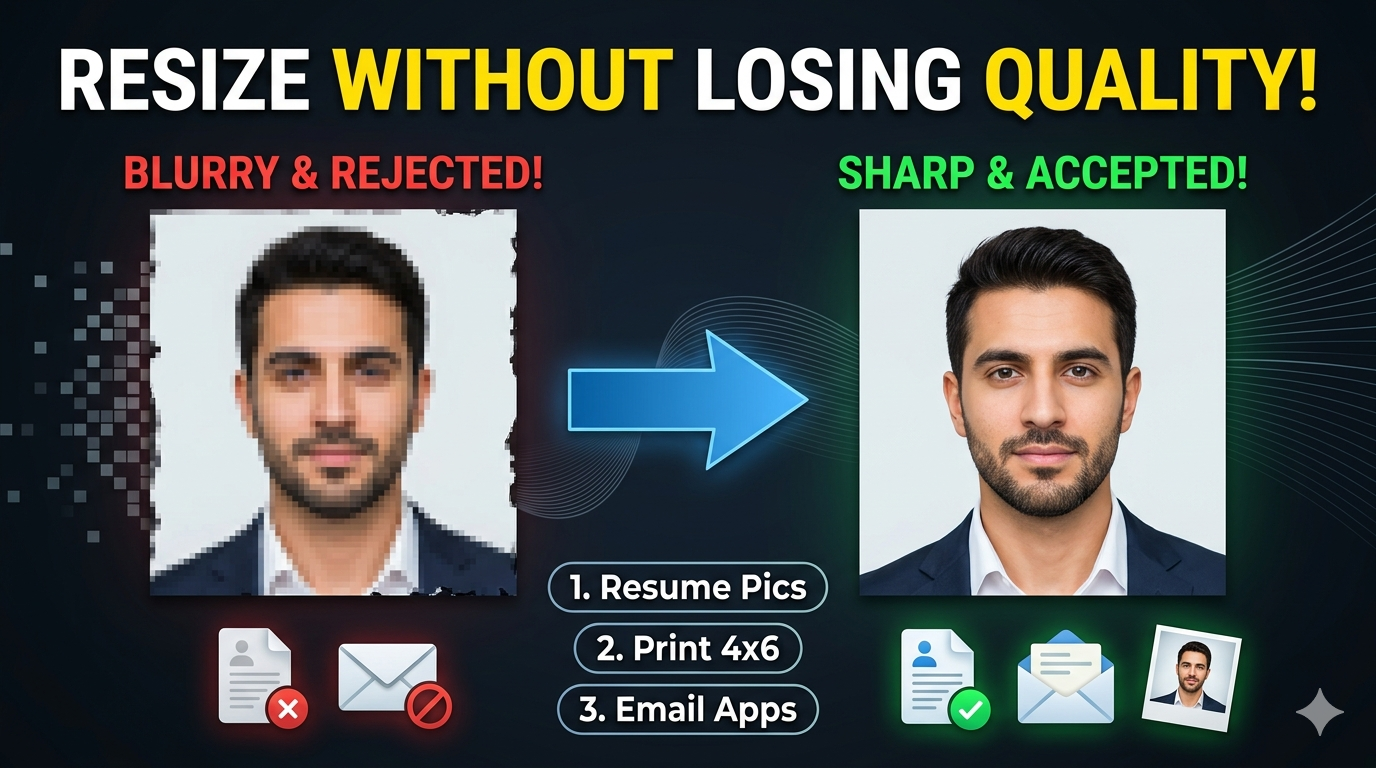
Why does a 12 × 18 image look blurry after resizing?
Blurriness can occur when a small or low-resolution source is enlarged significantly. The final quality also depends on the selected DPI, image quality, source detail, and output format.
Which image format is suitable for a 12 × 18 photograph?
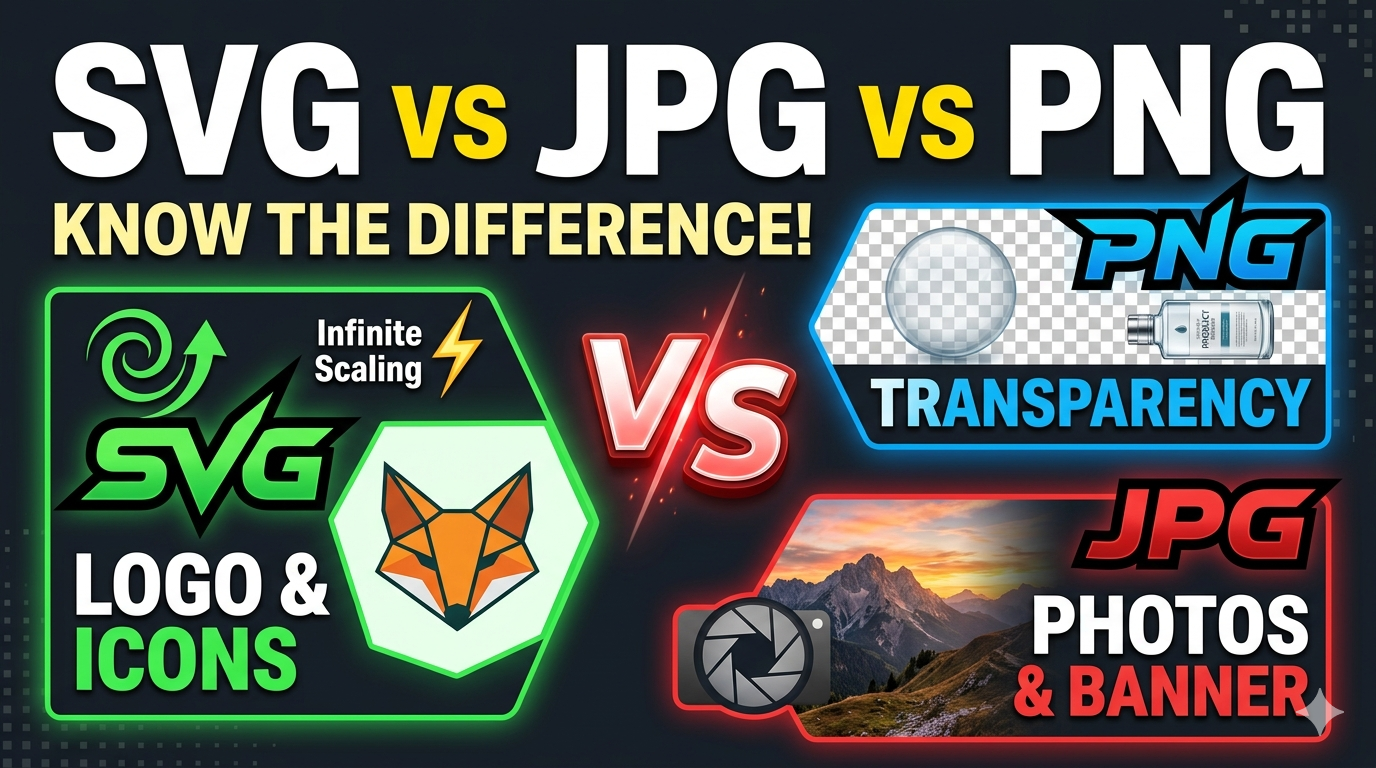
JPG or JPEG is generally suitable for photographs because it provides compressed output and broad compatibility. PNG is more useful when lossless output or transparency is important, while WebP can be useful when the destination supports it and efficient compression is desired.
Why does my 12 × 18 image have the correct dimensions but still look different from the original?
Resizing can change the number of pixels and therefore the amount of detail represented in the image. Cropping, stretching, fit modes, quality settings, and format conversion can also change how the final image appears.
When is Fit & Color useful for a 12 × 18 image?
Fit & Color is useful when the entire photo needs to remain visible without stretching it or cropping its edges. The remaining area is filled with a selected color to complete the 12 × 18 frame while keeping the original image proportions.
How can I maintain image quality when resizing to 12 × 18?
Start with a sufficiently detailed source image and choose an appropriate DPI and quality setting for the intended output. If the original image is too small, resizing it to 12 × 18 cannot recreate detail that was not present in the source.