



FAQ's
What does 1200 × 1800 mean for a photo?
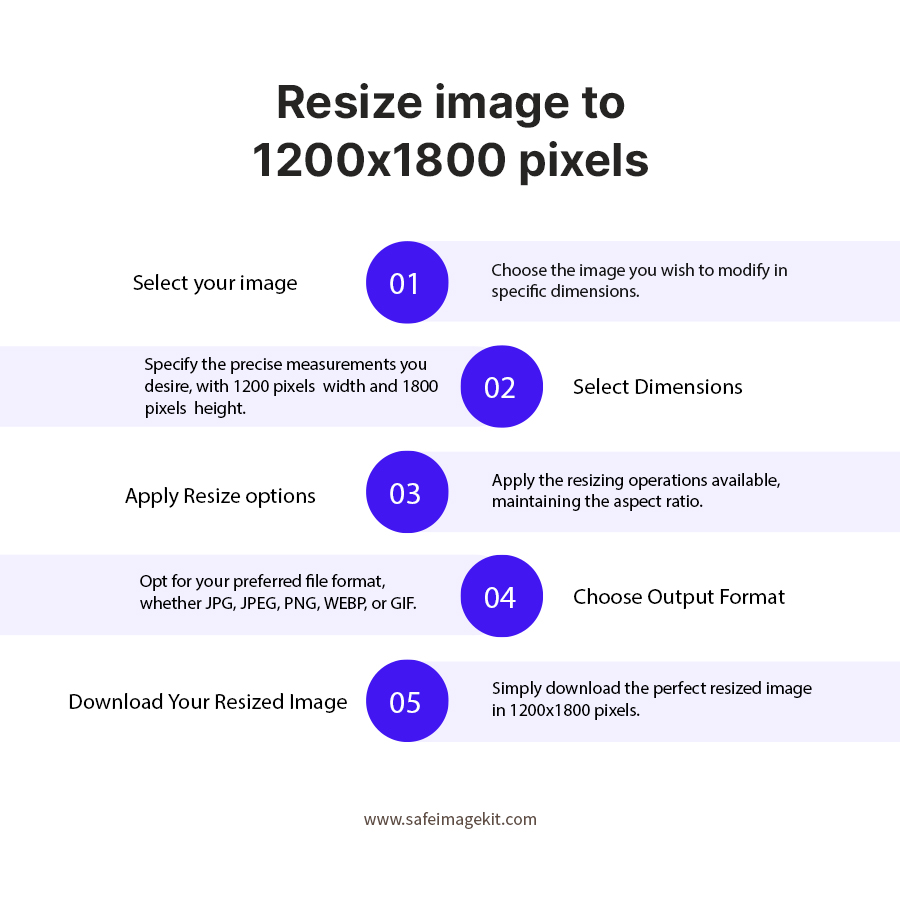
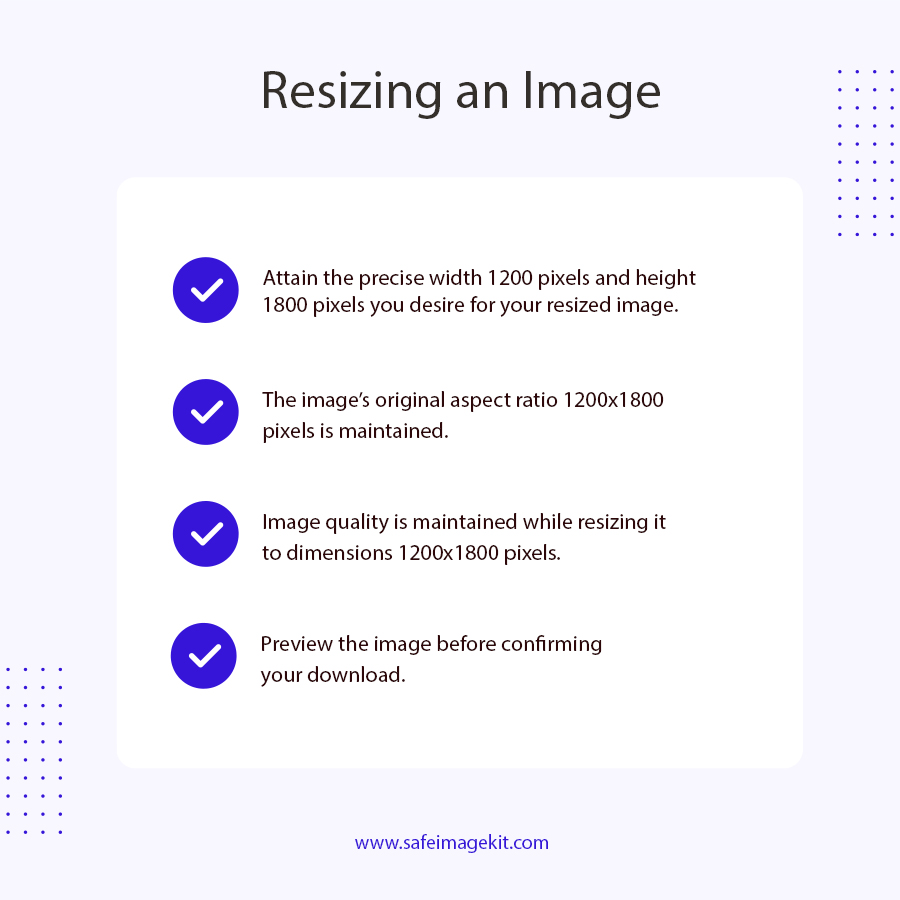
It describes the width and height of the image, with 1200 as the width and 1800 as the height when using pixels. The result is a portrait-oriented image with a 2:3 aspect ratio.
Is 1200 × 1800 the same as 1800 × 1200?
No. They contain the same two numbers but in reversed order. 1200 × 1800 is portrait orientation, while 1800 × 1200 is landscape orientation.
Why does my 1200 × 1800 image need to be in portrait orientation?
The height is greater than the width, so the resulting shape is vertical. A source image with a different orientation may need to be fitted or stretched to occupy this format.
My image is 1800 × 1200. How do I turn it into 1200 × 1800?
Changing the width and height reverses the target orientation, but it does not automatically rotate the contents of the original photo. If the image itself needs to face vertically, rotation may also be required before or after resizing.
Why does an 1800 × 1200 photo look different when fitted to 1200 × 1800?
The source has a 3:2 landscape ratio, while the target has a 2:3 portrait ratio. Fitting the complete photo therefore leaves additional space around the image instead of filling the entire area with the original proportions.
What happens if I stretch an 1800 × 1200 image to 1200 × 1800?
The image is forced into the portrait-shaped target, so objects can appear wider or taller than they originally were. Use a fit option when preserving the original proportions is more important than filling every part of the target.
Why are parts of my photo missing after resizing to 1200 × 1800?
A mismatch between the source and target aspect ratios can require the image to be fitted differently. If the goal is to keep the entire photo visible, use a fit-based option rather than forcing the source to fill the target shape.
What is the best resize type for keeping the entire photo in 1200 × 1800?
Use Fit & Blur or Fit & Color when the complete source image needs to remain visible. These modes preserve the source proportions and use the remaining area to complete the target dimensions.
When is Stretch a better choice for 1200 × 1800?
Stretch is useful when filling the complete target area is more important than preserving the source proportions. It is most suitable when some change in the image shape is acceptable.
Why does my 1200 × 1800 result have blank or colored areas?
Those areas are created when the source image does not have the same 2:3 aspect ratio as the target. A fit mode uses the remaining space rather than cropping or stretching the original image.
Is an image required to be greater than 1800 × 1200 before resizing to 1200 × 1800?
No. A smaller image can also be enlarged to 1200 × 1800, although enlarging a low-resolution source may make it appear softer. The original dimensions determine how much scaling is required.
What happens when an image is larger than 1800 × 1200?
It can be reduced to the required 1200 × 1800 dimensions. The amount of detail retained depends on the source image and the resizing process.
Why does my 1200 × 1800 image look blurry after enlargement?
Enlarging increases the output dimensions but does not recreate details that were not present in the original. A small or already-compressed source can therefore look softer at the larger output size.
What DPI should I use for a 1200 × 1800 image?
For a pixel-specific digital requirement, 1200 × 1800 pixels is the primary dimension. If the image is being prepared for print, choose the DPI specified by the printing requirement rather than changing it solely to make the image appear sharper.
Does changing DPI make a 1200 × 1800 image contain more pixels?
Not when the output is already specified as 1200 × 1800 pixels. DPI relates the digital image to physical print dimensions; changing DPI alone does not create additional image detail.
What quality setting should I use for a 1200 × 1800 image?
Use a higher quality setting when preserving image detail is more important, and reduce it when a smaller compressed file is needed. The right setting depends on the balance between appearance and file size required for the final use.
Why is my 1200 × 1800 file larger than expected?
File size depends on more than the dimensions. The image format, quality setting, compression, image detail, and whether transparency is present can all affect the final file size.
Which format is better for a 1200 × 1800 photo?
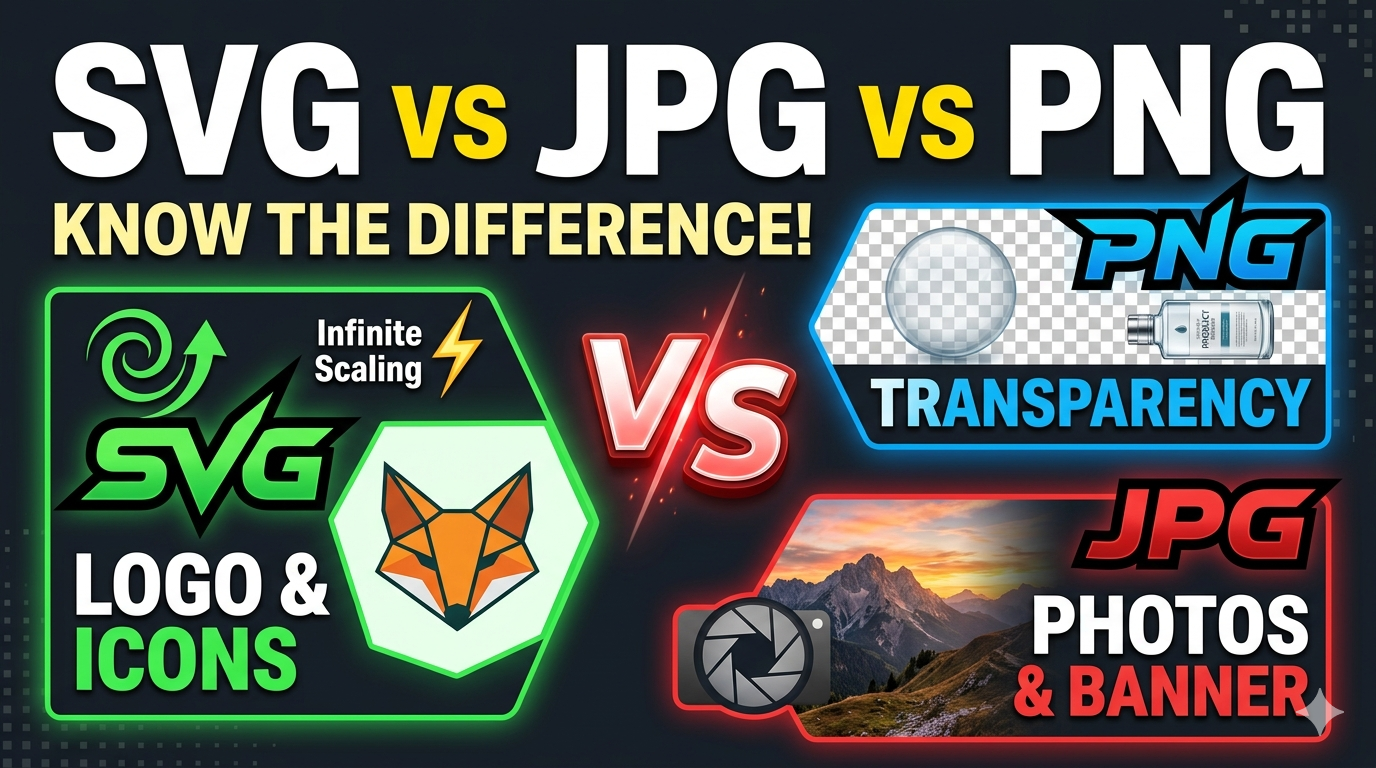
JPG or WebP can be suitable when a smaller file is preferred, while PNG is useful when lossless output or transparency is important. A GIF is generally more relevant when the source is an animated image.
Why did converting my 1200 × 1800 image to JPG change its appearance?
JPG uses lossy compression, so the output can differ slightly from a PNG or another source format. The selected quality level also affects how much compression is applied.
Why does changing from 1200 × 1800 to another unit change the displayed values?
The same dimensions can be represented in pixels, centimeters, millimeters, or inches. When physical units are used, DPI affects the relationship between the physical measurement and its corresponding pixel dimensions.
What happens if I unlock the aspect ratio while creating 1200 × 1800?
You can change the width and height independently instead of keeping their proportions linked. This is useful when the required output has different dimensions from the original 2:3 ratio.
Why does my photo still look wrong even though the dimensions are 1200 × 1800?
Correct dimensions only confirm the output size; they do not guarantee that the source composition matches the target shape. Stretching, fitting, background filling, and the original aspect ratio can all affect how the final image looks.
Why would I need 1200 × 1800 instead of 1800 × 1200 pixels?
The choice depends on the required orientation and destination specification. 1200 × 1800 is the portrait version, while 1800 × 1200 is the landscape version, so using the wrong order can result in an incorrect orientation.