





FAQ's
What is the aspect ratio of 1000 × 524 pixels?
The 1000 × 524 dimensions have an aspect ratio of approximately 1.91:1. This makes the format noticeably wider than a square or standard 4:3 image.
Why does a 1000 × 524 image look wider than a regular photo?
The width is almost twice the height, so the resulting image has a wide horizontal shape. A portrait or square source may therefore need to be fitted, cropped elsewhere, or stretched to fill the output.
What happens when a portrait photo is resized to 1000 × 524?
A portrait image has a much narrower aspect ratio than 1000 × 524. Stretching it can change its proportions, while a fit option can preserve the photo and fill the remaining horizontal space.
What happens when a square image is resized to 1000 × 524?
A square image does not naturally match the wide 1000 × 524 shape. Using a fit option keeps the square proportions and adds space around it, while Stretch fills the complete output by changing its proportions.
Why does my image have empty space after resizing to 1000 × 524?
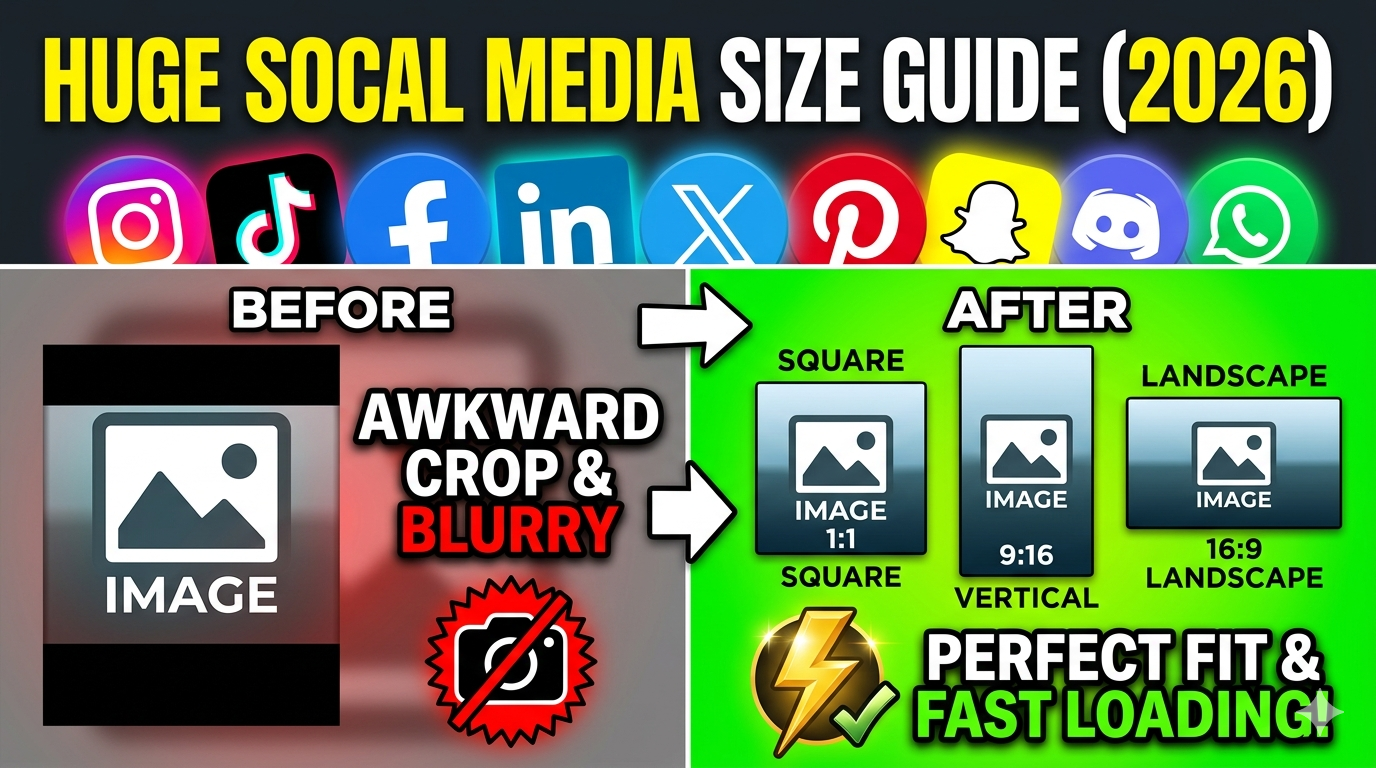
Empty space can appear when the original image is fitted without changing its proportions. Fit & Blur and Fit & Color use that remaining area to complete the required dimensions.
What is the difference between stretch and fit when creating 1000 × 524?
Stretch fills the entire 1000 × 524 area by changing the image proportions when necessary. Fit keeps the original proportions and uses the available background area to complete the output.
When is Fit & Blur useful for a 1000 × 524 image?
It is useful when the entire source image needs to remain visible but does not naturally fit the wide dimensions. The remaining space is filled with a blurred background rather than cutting off parts of the image.
When is Fit & Color useful for this size?
Fit & Color works when you need the complete image visible with a simple, uniform background. You can use a selected background color to fill the area left after fitting the image.
Why does stretching a photo to 1000 × 524 make it look distorted?
Distortion occurs when the source aspect ratio does not match the approximately 1.91:1 target ratio. The image must be expanded or compressed unevenly to occupy every pixel of the output.
What happens if my original image is already close to 1000 × 524?
The image requires less scaling than a much smaller or larger source. If its proportions are also close to 1.91:1, it can usually be fitted to the target with less visible change in composition.
Does 1000 × 522 differ from 1000 × 524?
Yes. Both have the same width, but the height differs by 2 pixels, so they are not technically identical dimensions. If a system specifies 1000 × 522, enter those exact values instead of assuming 1000 × 524 will be accepted.
Why might a website ask for 1000 × 522 instead of 1000 × 524?
Different templates and image specifications can use slightly different dimensions. Even a small difference in height can matter when an upload system checks the pixel dimensions exactly.
What does 1000 × 5.5 mean when entering image dimensions?
The meaning depends on the selected unit. If the fields are set to pixels, 5.5 pixels is an extremely narrow height; if the requirement refers to inches, centimeters, or another unit, the corresponding unit must be selected before entering the value.
How does changing the unit affect a 1000 × 524 image?
Changing the measurement unit changes how the dimensions are represented, but it does not automatically mean the intended output is the same physical or pixel size. The selected unit and DPI work together when dimensions are specified for print.
What happens if I enter 1000 for width and 524 for height manually?
The tool uses those values as the requested output dimensions. This is useful when you need to verify or adjust the preset rather than relying only on the page's default values.
Why does the image look different even though it is exactly 1000 × 524?
Matching the pixel dimensions does not guarantee that the image will look identical to the original. Resizing changes the number of pixels used to represent the image, and stretch or quality settings can also affect the final appearance.
Can a small image be enlarged to 1000 × 524?
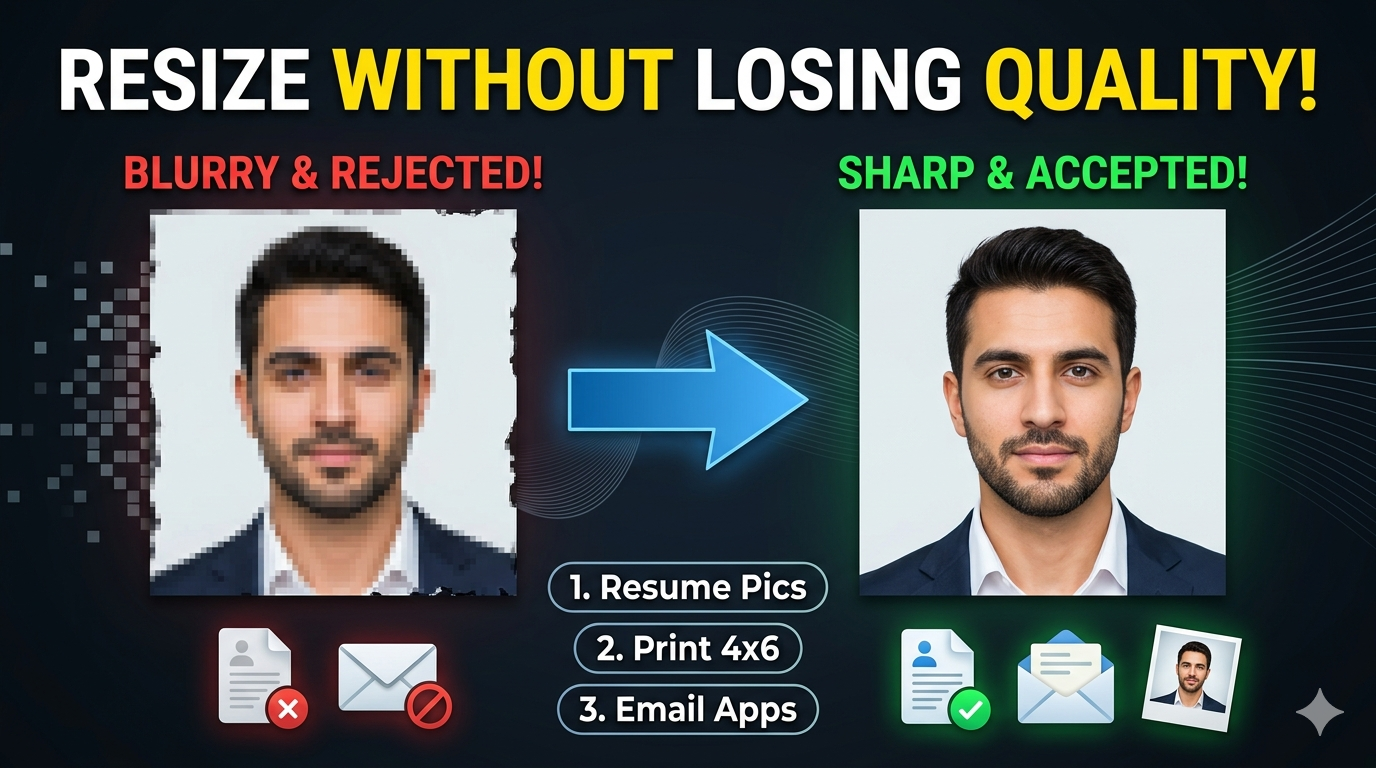
The dimensions can be increased to 1000 × 524, but enlargement cannot recreate detail that was absent from the original image. A low-resolution source may therefore look softer after being enlarged.
Why does the file size change after resizing to 1000 × 524?
The output file contains a different number of pixels and may also use different quality or compression settings. The selected format, image content, and quality level can all affect the final file size.
Does DPI change the 1000 × 524 pixel dimensions?
When the output is explicitly set to 1000 × 524 pixels, those are the pixel dimensions of the image. DPI is a separate resolution setting and becomes particularly relevant when physical print dimensions are involved.
What DPI should be used when resizing to 1000 × 524 pixels?
The appropriate DPI depends on how the image will be used. For a pixel-specific digital requirement, the 1000 × 524 pixel dimensions are the primary specification; print requirements may also specify a particular DPI.
Which format is useful for a 1000 × 524 image?
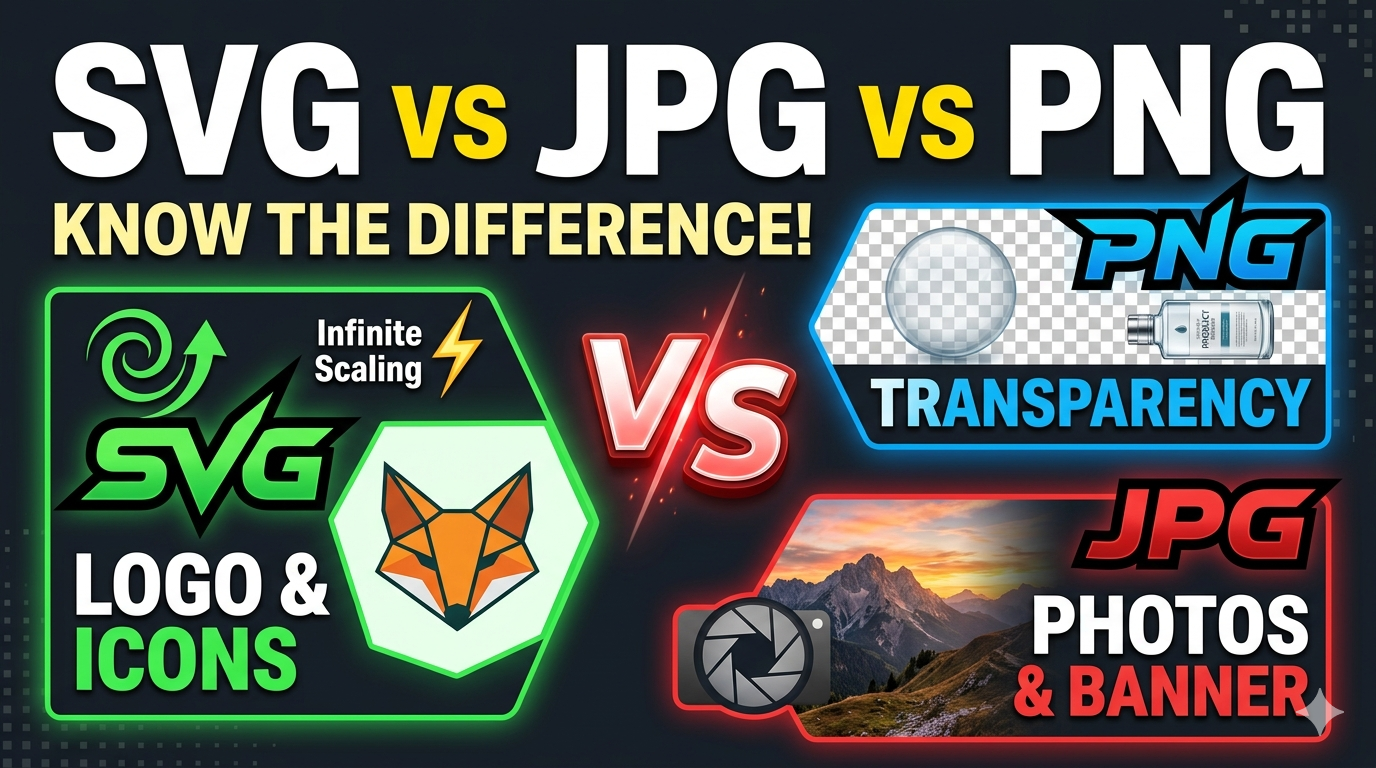
JPG or WebP can be useful when a smaller file is preferred, while PNG is useful when lossless output or transparency is important. The best choice depends on the image and where the resized file will be used.
Why does my 1000 × 524 output have a different composition from the original?
A composition can change when the source and target aspect ratios are different. Fitting may leave background space, while stretching changes proportions; these effects are determined by the selected resize type.
What if the required size is close to 1000 × 524 but not exact?
Use the actual dimensions specified by the destination rather than choosing the nearest preset. For example, 1000 × 522 and 1000 × 524 are close in size but represent different pixel requirements.